

Have you been in the location or asset drilldown dialog box and seen the node “…This level has reached the set display limit…”? That is because the drilldown limit for child nodes is set to 50. You can change this limit to 5 or even 200. This is what the drilldown looks with the default setting.
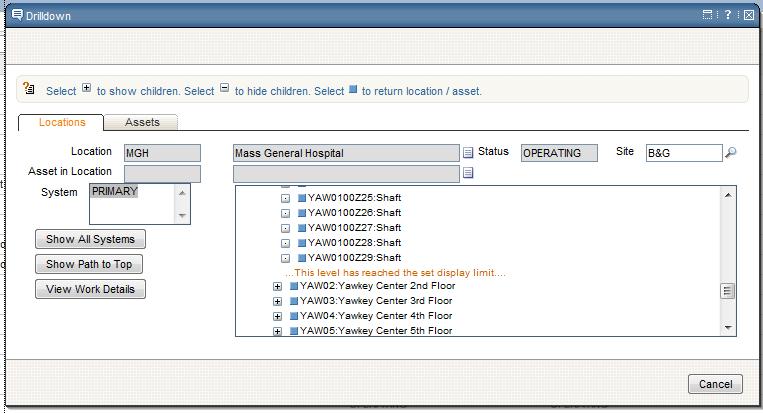
To change the limit, first open up the Application Designer. Click Select Action -> Export System XML. Export the LIBRARY xml by clicking on the blue arrow icon on the right. Save the xml file. You can choose to create a backup just in case something goes wrong.
Open the LIBRARY.xml file with notepad or your favorite text editor. Search for the term relationship=”LOCATION”. The complete line you are looking for should be something like this:
<tree beanclass="psdi.webclient.beans.common.DrilldownTreeBean" checkfornewnodes="true" height="150" id="locations_tree"
ignorestructurechange="true" relationship="LOCATIONS" selectfirstnode="true" width="500">
Next, insert the text maxchildren=”100″ after relationship=”LOCATIONS”. You can set it to any limit you wish. The xml should now look like so:
<tree beanclass="psdi.webclient.beans.common.DrilldownTreeBean" checkfornewnodes="true" height="150" id="locations_tree"
ignorestructurechange="true" relationship="LOCATIONS" maxchildren="100" selectfirstnode="true" width="500">
Save. This will now change the location drilldown to the specified limit. If you also want to change the drilldown limit for assets, search for the term relationship=”ASSET” and follow the same steps.
After you made your changes and saved, it’s time to import the xml back into Maximo. Go into the Application Designer and on the tab menu, click on the import icon. Browse for the xml file you just made changes to. Click OK to import the file.
You should now have changed the limit for the drilldown to suit your needs.



Hi,
I have a requirement like, i have to access an external applications(Ex: Yahoo,google…etc) into the maximo7 start center’s header part. Please can you suggest me, how to achive it?
Add URL to Maximo Start Center
Hi Chon,
Can you tell me the whole procedure for that?
I mean i tried but couldn’t find the way so can you please help me out?
That is an old post and may not be valid for Maximo 7.5
Thanks. this was a great help. I have been trying to locate where to edit the drilldown to include serilanumbers, etc.
Hi Maximotimes,
In parameter section report administration, While trying to add an attribute, i get a warning “This level has reached the set display limit.”
I tried to find this dialogue to change the maxchildren value by exporting the system xml . I am unable find this dialogue details. Any idea how/where to change the properties for this?(I use SCCD 7.5)